
Connect WordPress and WooCommerce
Connect your site in one click so registrations, customers and form signups reach your contacts, and manage everything from PostaraMail.
1Install the plugin
Download it from postaramail.com/wordpress. In WordPress go to Plugins, Add New, Upload Plugin, choose the ZIP and Activate.
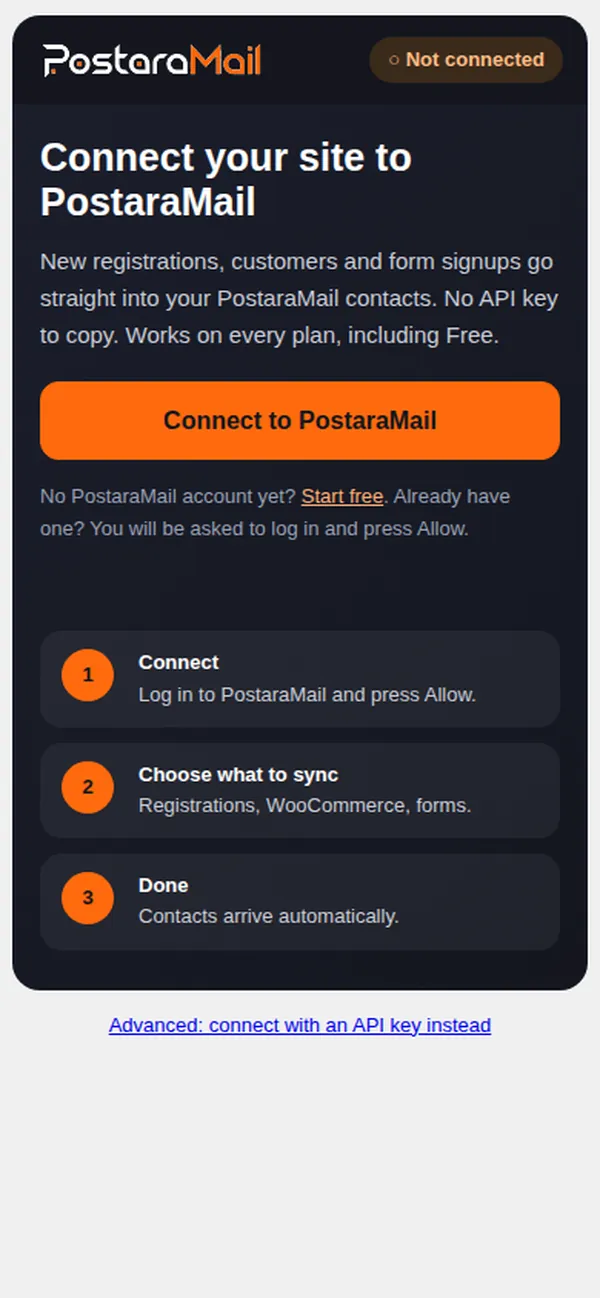
2Connect in one click
Open PostaraMail in the WordPress sidebar and press Connect to PostaraMail. Log in if asked, check what the site may do, tick the confirmation and press Allow and connect. No API key is needed, and it works on every plan.
3Choose what to sync
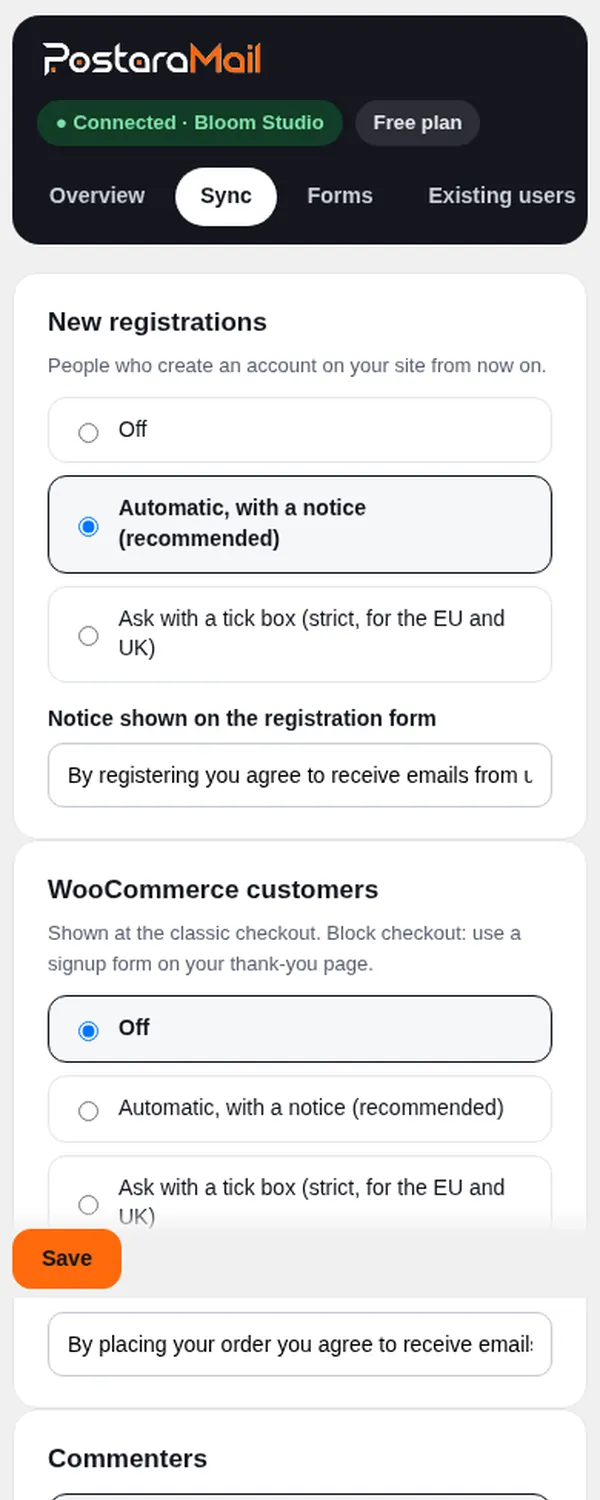
On the Sync tab choose how new registrations and WooCommerce customers are added: automatic with a notice (needs your confirmation) or a strict tick box (recommended for the EU and UK).
4Existing users are never added silently
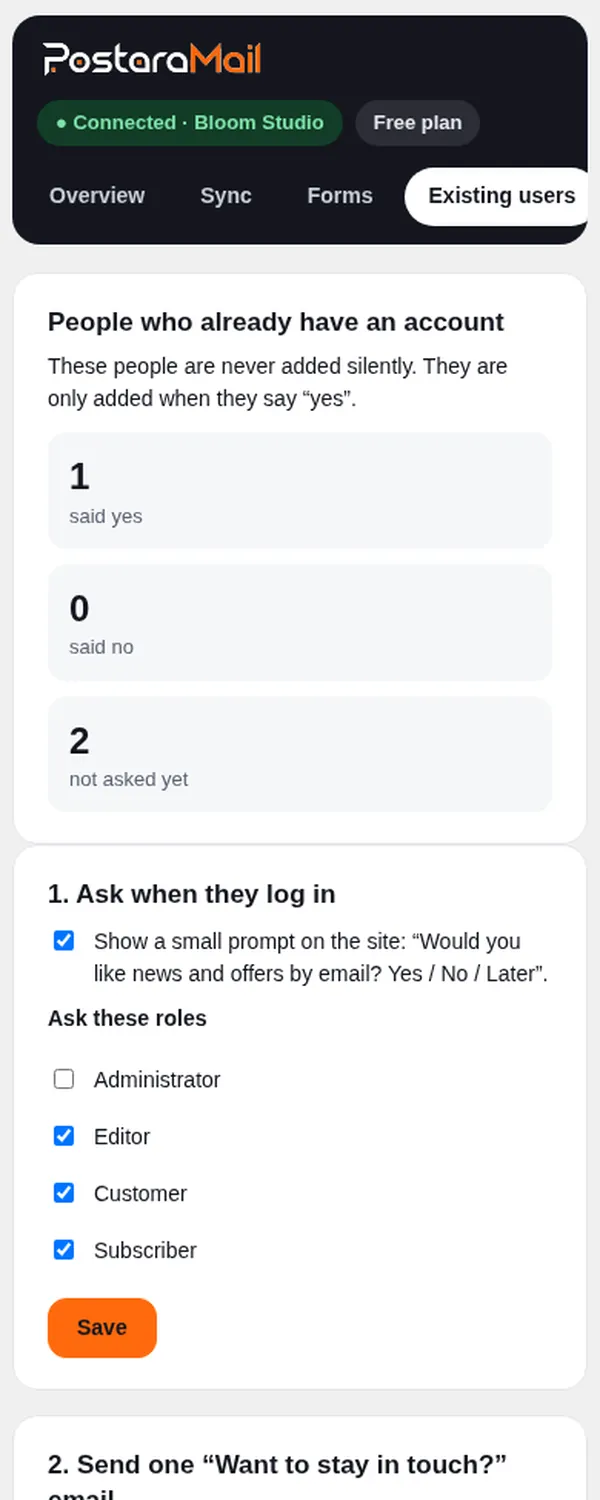
People who already have an account appear in PostaraMail as Not asked yet: visible, never emailed, not counted in your plan. They are asked with a small prompt after login, or one optional Want to stay in touch? email. Only a yes subscribes them; a no makes them Declined.
5Manage it from PostaraMail
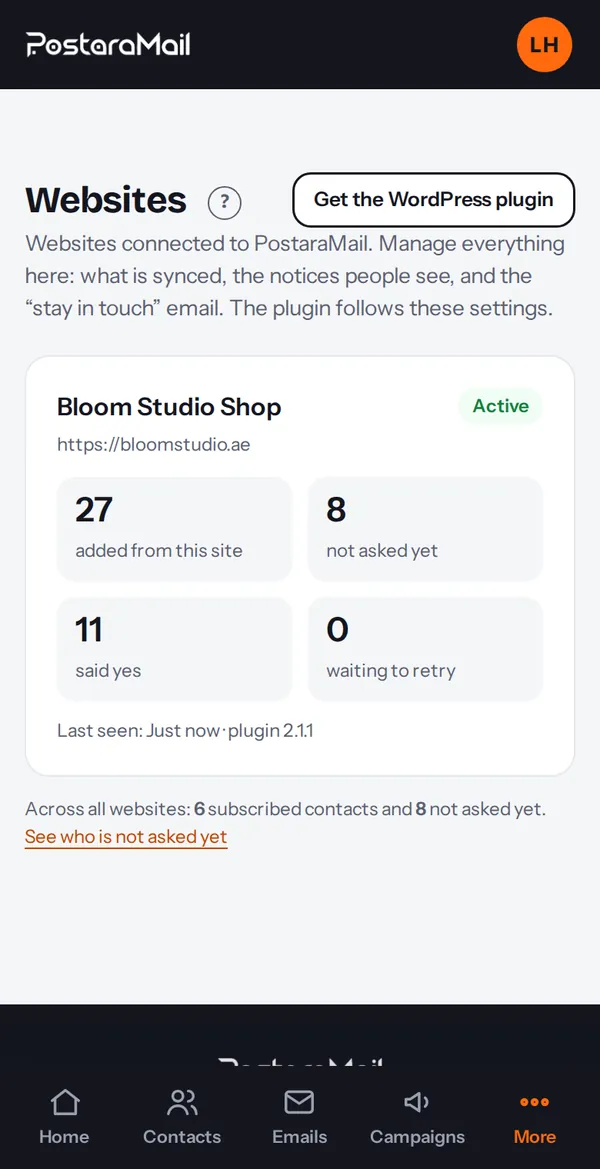
The Websites page in your dashboard controls the same settings, shows stats, and can start the stay-in-touch email. The plugin follows it (within 15 minutes, or at once when you open the plugin screen).
6Add a signup form
In the plugin open Forms. Use the PostaraMail Signup Form block or paste [postaramail_form] into any page.
Stuck? Contact support · All tutorials · Glossary