
Send from your own domain (add DNS records)
Make your emails come from hello@yourbusiness.com. You add your domain, copy a few DNS records to your domain host, and PostaraMail checks them for you.
1Open Sending domain
Press your avatar (top right), choose Settings and scroll to Sending domain. It is on every plan, including Free.
Tip: Until your domain is verified, your emails already go out with your business name and logo, from PostaraMail's shared address, and replies come to you. Nothing breaks while you set this up.
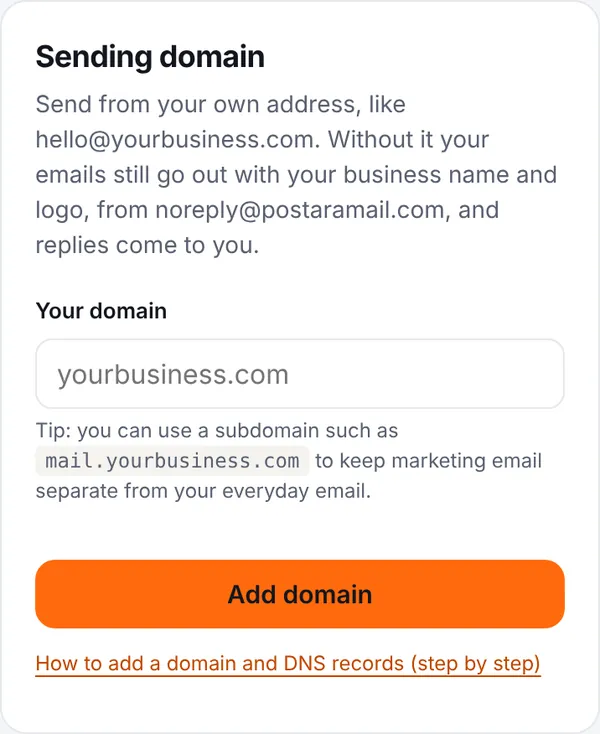
2Type your domain and press Add domain
Enter the domain you own, like yourbusiness.com (no https:// and no @). A subdomain such as mail.yourbusiness.com is a good choice because it keeps marketing email separate from your everyday email. Gmail, Yahoo and Outlook addresses cannot be used: you need a domain you own.
3Copy each record
PostaraMail shows a few numbered cards, one per DNS record. Each card has Type, Name and Value fields with a Copy button next to each. Press Copy, then paste the text into the same field at your DNS host. Some hosts want the full name (like send.yourbusiness.com): press Copy full name for those.
Tip: Copy the value exactly. A missing character or an extra space is the most common reason a record does not verify.
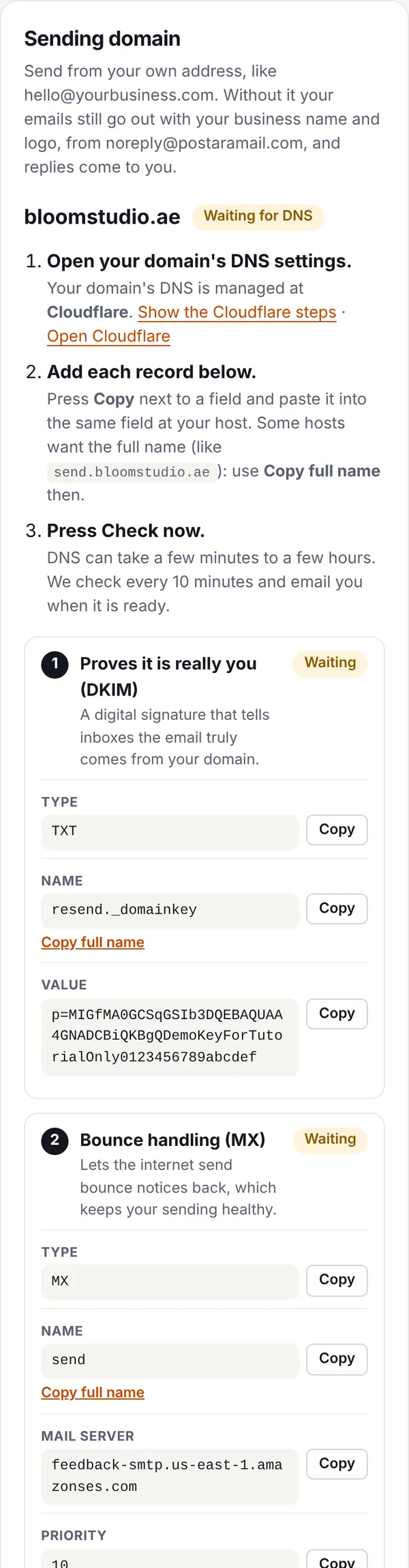
4Add the records at your DNS host
Open the DNS settings where your domain is managed (PostaraMail tells you which company runs it when it can) and add each record. Step-by-step guides for 12 popular hosts are below, and a general guide for any other host.
Tip: Your DNS is managed where your domain's nameservers point. If you bought the domain at one company but use another company's nameservers (for example Cloudflare), add the records at the nameserver company.
5Press Check now and wait
Press Check now. DNS changes can take a few minutes to a few hours. PostaraMail checks again every 10 minutes and sends you an email when the domain is verified. If it is still not verified after 3 days we email you the list of missing records. On the Free plan, a domain that is still not verified after 14 days is removed to free the space; you can add it again.
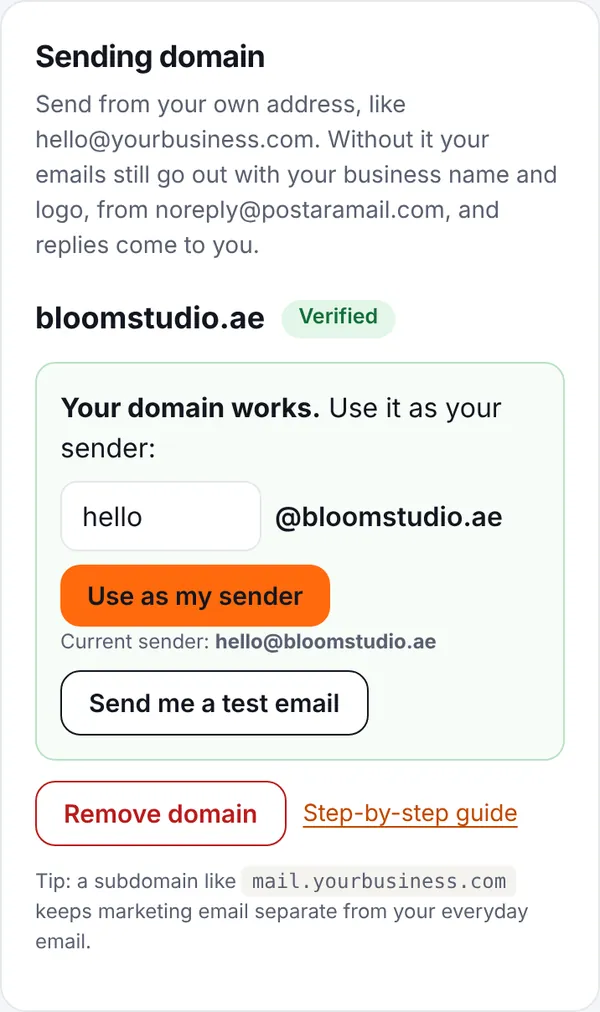
6Use it as your sender
When the card turns green and says Verified, type the part before the @ (for example hello) and press Use as my sender. Press Send me a test email to see the result in your own inbox. From now on your campaigns and automations come from your own address.
7Recommended: the DMARC record
The last card, Recommended: DMARC, is optional. It is not needed to verify, but Gmail and Yahoo like to see it and it helps your emails reach the inbox. Add it the same way. If you already have a DMARC record, skip it.
Steps for your DNS host
Menus change from time to time. If a screen looks different, search your host's help for "add DNS record" and follow the same idea: add each record with the same Type, Name and Value.
- Add the record exactly as shown: the same Type, Name and Value.
- Most hosts want the Name as only the first part (for example send), not the whole domain. If a host adds your domain to the end automatically, use Copy; if it asks for the full name, use Copy full name.
- Keep TTL on Auto or the default.
- The MX record also needs the Priority shown (usually 10).
- If your host has a proxy or "orange cloud" option on a CNAME record, turn it off (DNS only).
- Do not create a second SPF record. If you already have a TXT record starting with v=spf1, keep it and ask us if you need help merging.
- Wait up to a few hours, then press Check now.
Cloudflare
Where: Cloudflare dashboard → choose your domain → DNS → Records → Add record. Open Cloudflare
- Log in at dash.cloudflare.com and click your domain.
- In the left menu open DNS, then Records.
- Click Add record. Choose the Type (TXT, MX or CNAME), paste the Name and the Value (or Mail server for MX), and for MX also the Priority.
- For a CNAME record switch the Proxy status to DNS only (grey cloud). A proxied (orange cloud) CNAME will not verify.
- Leave TTL on Auto and click Save. Repeat for each record.
GoDaddy
Where: GoDaddy → My Products → your domain → DNS → Add New Record. Open GoDaddy
- Log in to GoDaddy and open My Products.
- Next to your domain click DNS (or Manage DNS).
- Click Add New Record and choose the Type.
- Paste the Name into Name (GoDaddy wants only the first part, like send) and the Value into Value (Data for MX).
- For MX, enter the Priority. Keep TTL at the default and click Save. Repeat for each record.
Namecheap
Where: Namecheap → Domain List → Manage → Advanced DNS → Add New Record. Open Namecheap
- Log in to Namecheap and open Domain List.
- Click Manage next to your domain, then the Advanced DNS tab.
- Click Add New Record and choose the Type.
- Paste the Name into Host (only the first part, like send) and the Value into Value.
- For MX records, set Mail Settings (further down the page) to Custom MX first, then add the MX record with its Priority.
- Save each record with the green tick.
Hostinger
Where: Hostinger hPanel → Domains → your domain → DNS / Nameservers → DNS records. Open Hostinger
- Log in to hPanel and open Domains.
- Click Manage next to your domain, then DNS / Nameservers, then the DNS records tab.
- In the Add Record form choose the Type.
- Paste the Name into Name (the first part only, like send) and the Value into Content (Points to).
- For MX, enter the Priority. Keep the default TTL and click Add Record. Repeat for each record.
- If your domain uses nameservers from another company, add the records there instead.
Squarespace Domains (formerly Google Domains)
Where: Squarespace → Domains → your domain → DNS → DNS settings → Custom records. Open Squarespace Domains (formerly Google Domains)
- Log in to Squarespace and open Domains.
- Click your domain, then DNS, then DNS settings.
- Scroll to Custom records and click Add record.
- Choose the Type, paste the Name into Host name (first part only) and the Value into Data. For MX also enter the Priority.
- Save. Repeat for each record.
Bluehost
Where: Bluehost → Domains → your domain → DNS → Add Record. Open Bluehost
- Log in to Bluehost and open Domains.
- Click Manage next to your domain, then the DNS tab.
- Click Add Record and choose the Type.
- Paste the Name into Host Record (first part only) and the Value into Points to / TXT Value. For MX also enter the Priority.
- Save. Repeat for each record.
SiteGround
Where: SiteGround → Site Tools → Domain → DNS Zone Editor. Open SiteGround
- Open Site Tools for your site, then Domain, then DNS Zone Editor.
- Choose your domain and pick the record type (TXT, MX or CNAME).
- Paste the Name and the Value. For MX also enter the Priority.
- Click Create. Repeat for each record.
IONOS (1&1)
Where: IONOS → Domains & SSL → your domain → DNS → Add record. Open IONOS (1&1)
- Log in to IONOS and open Domains & SSL.
- Click the domain, then the DNS tab.
- Click Add record and choose the Type.
- Paste the Name into Host name (first part only) and the Value into Value (Points to for MX/CNAME). For MX also enter the Priority.
- Save. Repeat for each record.
Wix
Where: Wix → Domains → your domain → Manage DNS records. Open Wix
- Log in to Wix and open Domains.
- Click the three dots next to your domain and choose Manage DNS Records.
- Click Add Record in the right section (TXT, MX or CNAME).
- Paste the Name into Host Name (first part only) and the Value into Value. For MX also enter the Priority.
- Save. Repeat for each record.
Amazon Route 53
Where: AWS Console → Route 53 → Hosted zones → your domain → Create record. Open Amazon Route 53
- Open Route 53, then Hosted zones, and click your domain.
- Click Create record.
- Enter the record name (the first part only), choose the type, and paste the value. TXT values must be inside double quotes. For MX the value is the priority and the mail server together, like 10 feedback-smtp.us-east-1.amazonses.com.
- Click Create records. Repeat for each record.
Porkbun
Where: Porkbun → Domain Management → your domain → DNS records. Open Porkbun
- Log in to Porkbun and open Domain Management.
- Click DNS next to your domain.
- Choose the Type, paste the Name into Host (first part only) and the Value into Answer. For MX also enter the Priority.
- Click Add. Repeat for each record.
Name.com
Where: Name.com → My Domains → your domain → Manage DNS records. Open Name.com
- Log in to Name.com and open My Domains.
- Click your domain, then DNS Records.
- Choose the Type, paste the Name into Host (first part only) and the Value into Answer. For MX also enter the Priority.
- Click Add Record. Repeat for each record.
Any other host
Look for a section called DNS, DNS records, DNS zone, Zone editor or Advanced DNS in your domain or hosting account. Add each record there using the general rules above. If you cannot find it, ask your host\'s support: "Where do I add a TXT, MX and CNAME record for my domain?"
Stuck? Contact support · All tutorials · Glossary