
Set up your business profile and brand
Tell PostaraMail about your business once, so every email, template and AI draft fits you and shows your address.
1Open Settings
Press your avatar (top right) and choose Settings.
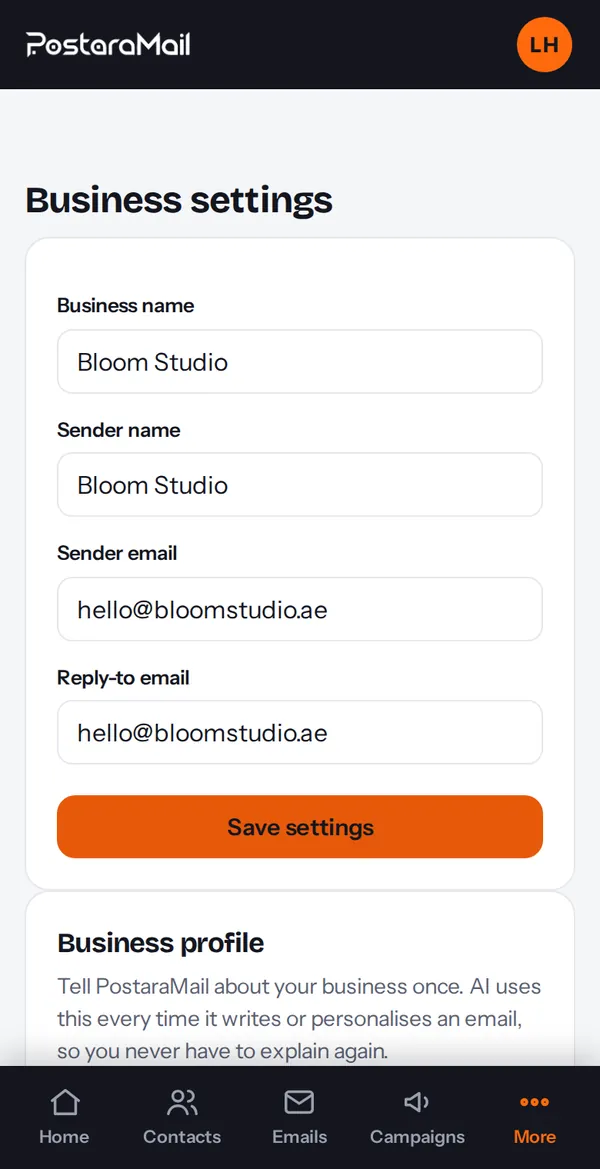
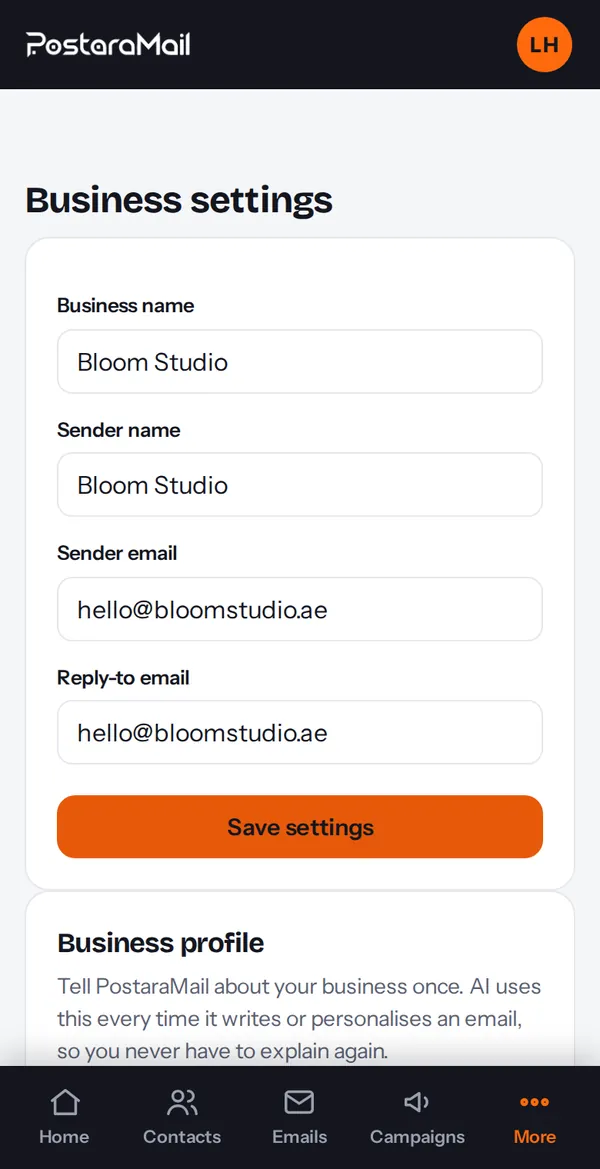
2Sender details
Under Business settings set the sender name and sender email, and the reply-to address. Replies go to the reply-to address. Your own domain needs a few DNS records first (next chapter); until then your emails go out with your business name from PostaraMail's shared address.
3Business address (required)
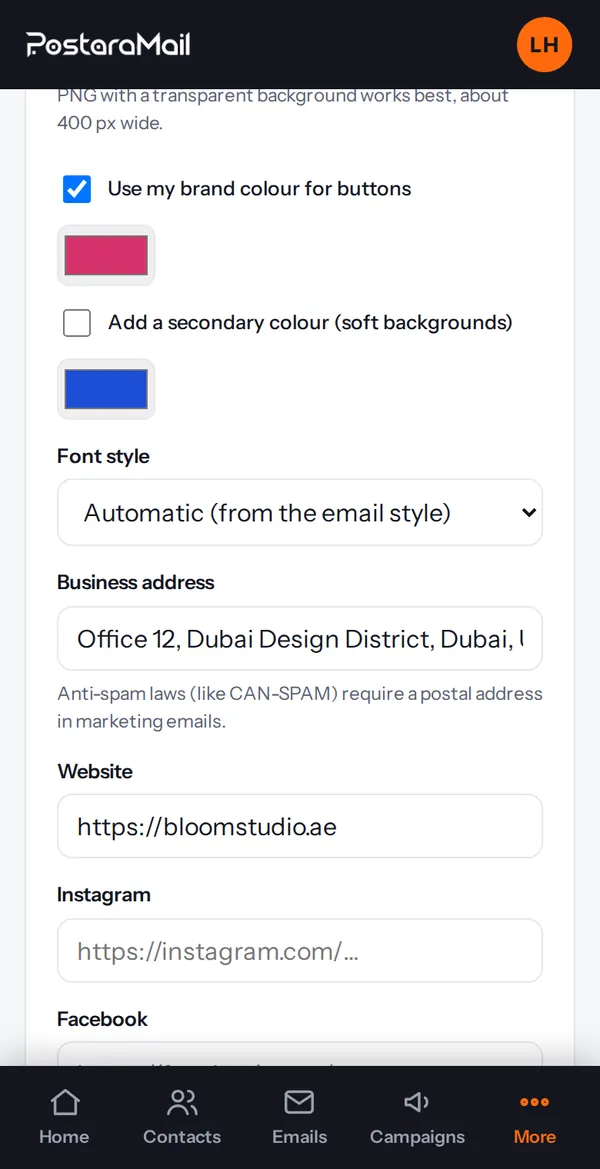
Enter your postal address in Business address. Anti-spam laws require it in every marketing email, so PostaraMail will not let you send a campaign or switch on an automation without it.
4Business profile for AI
Under Business profile write what you do, who your audience is, your main offer and your tone. The AI uses this to write in your voice.
5Brand
Under Brand add your logo, brand colour and website. Designed emails use them automatically.
Stuck? Contact support · All tutorials · Glossary