
Add contacts (manually or by CSV)
Add people who agreed to hear from you, with their country, and keep clear consent records.
1The Contacts page
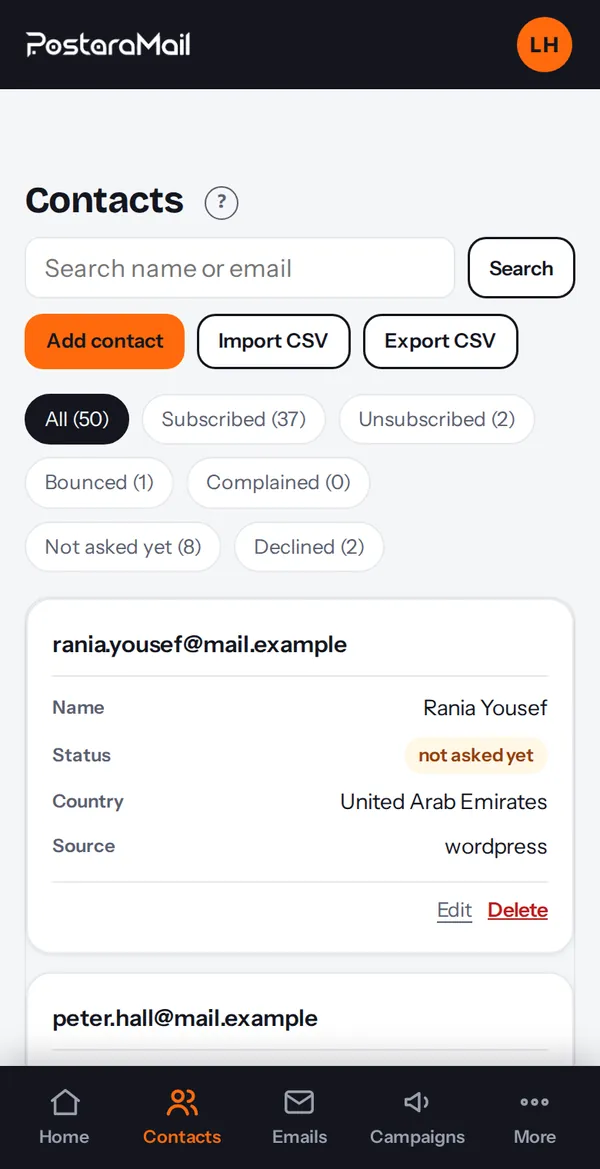
Open Contacts. Filters at the top show Subscribed, Unsubscribed, Bounced, Complained, and, if you connect a website, Not asked yet and Declined.
2Add one contact
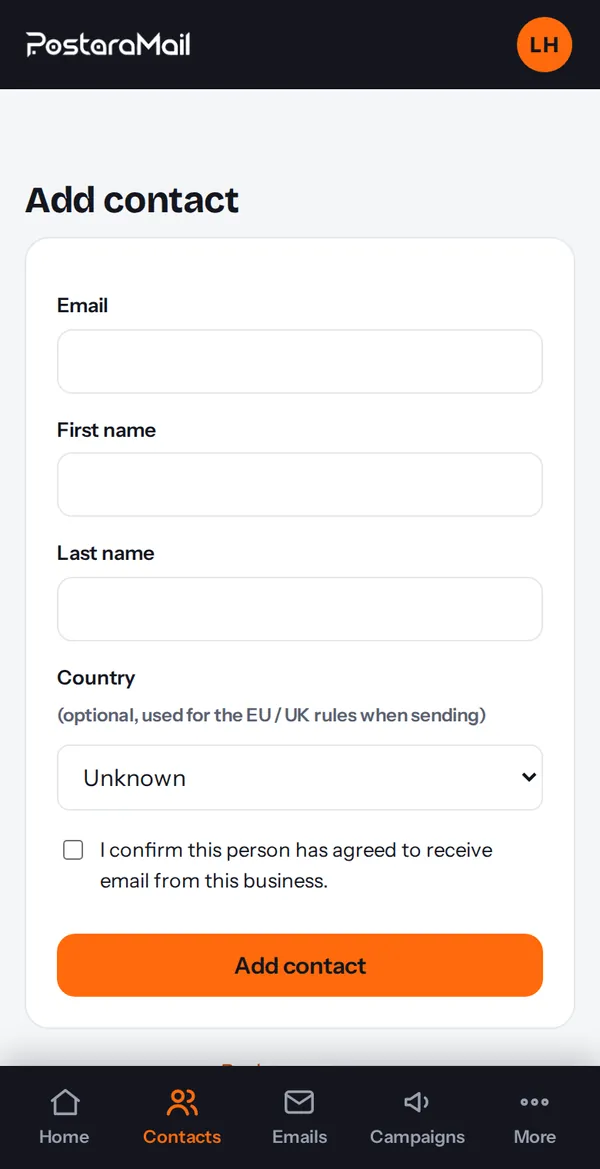
Press Add contact. Enter the email and name, choose the country if you know it, and tick the box confirming this person agreed to receive your emails. The country matters when you send: contacts with no country are treated like EU/UK contacts.
3Import a CSV
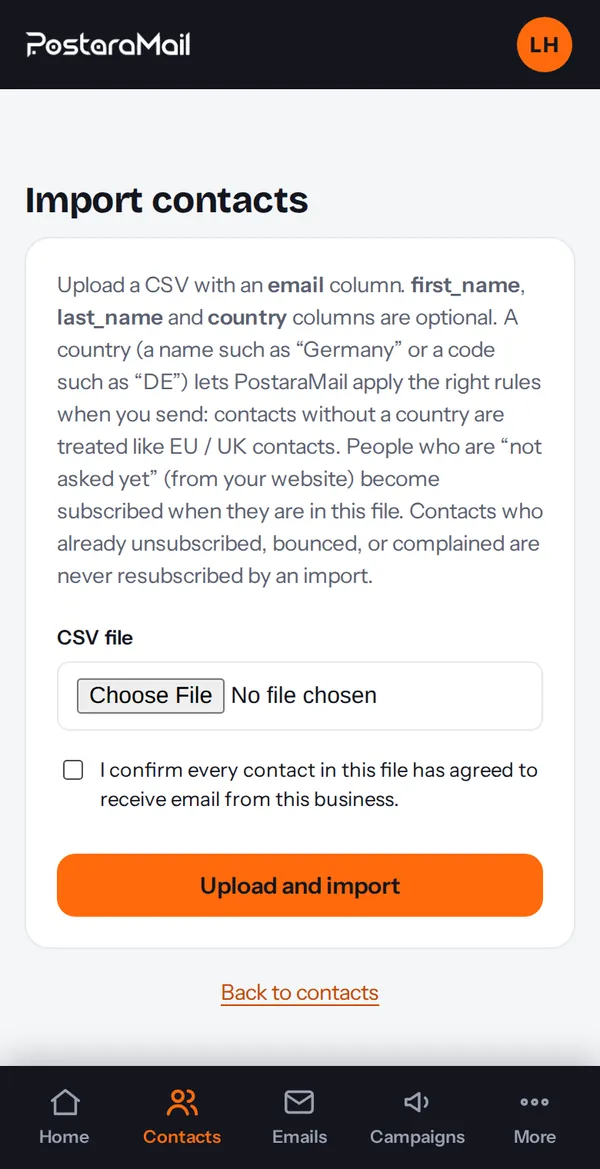
Press Import CSV. Your file needs an email column; first_name, last_name and country are optional (country names like Germany or codes like DE both work). Tick the consent confirmation and upload.
4Edit, export and delete
Open a contact with Edit to change their name, country or status. Export CSV downloads your list. Every contact shows a badge: opt-in or notice (how they agreed).
5Consent proof
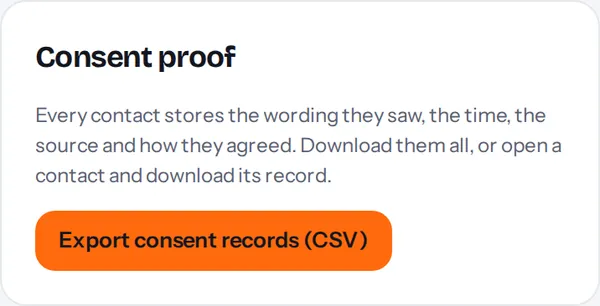
Each contact keeps the wording, time and source of their consent. Open a contact and press Download consent record for a PDF, or export all records from Settings, Legal and privacy.
Stuck? Contact support · All tutorials · Glossary