
Edit your email in the visual editor
Change sections, wording, colours and layout, preview on desktop and phone, and send yourself a test.
1Open the editor
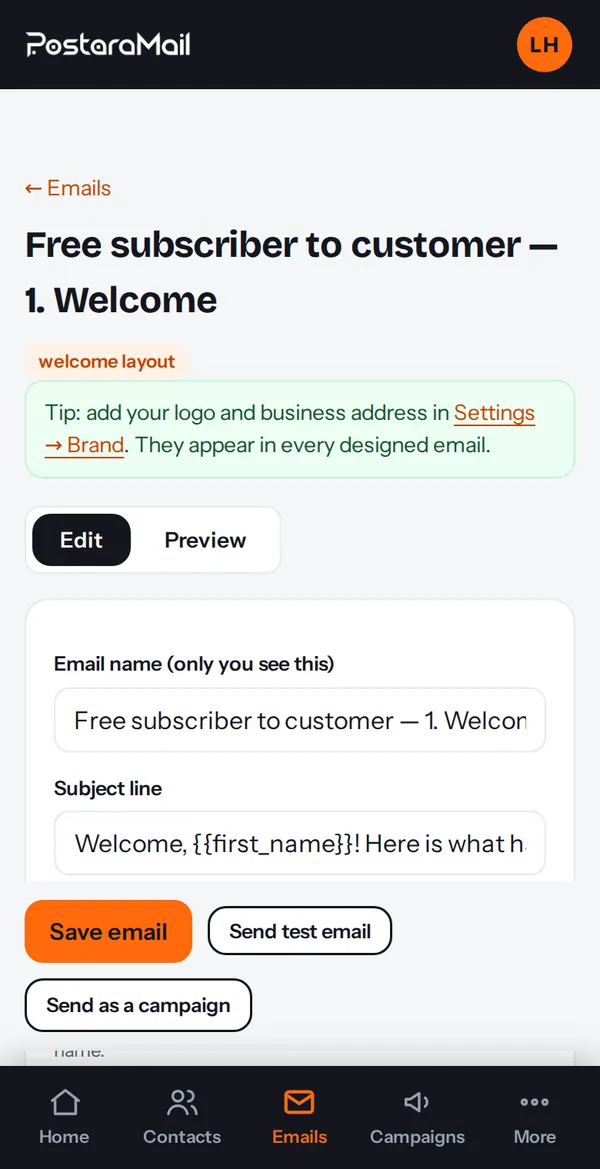
Open any designed email and press Edit design. You see your email as sections you can edit.
2Edit, add, move and delete sections
Tap a section to edit its text, image, button and alignment. Use Add section for new blocks, and the arrows or drag handle to reorder. Duplicate and Delete are in each section.
3AI design actions
The AI actions (make it more modern, cleaner, more professional, minimal, simplify, improve the call to action, and more) change the design without changing your words.
4Preview on desktop and mobile
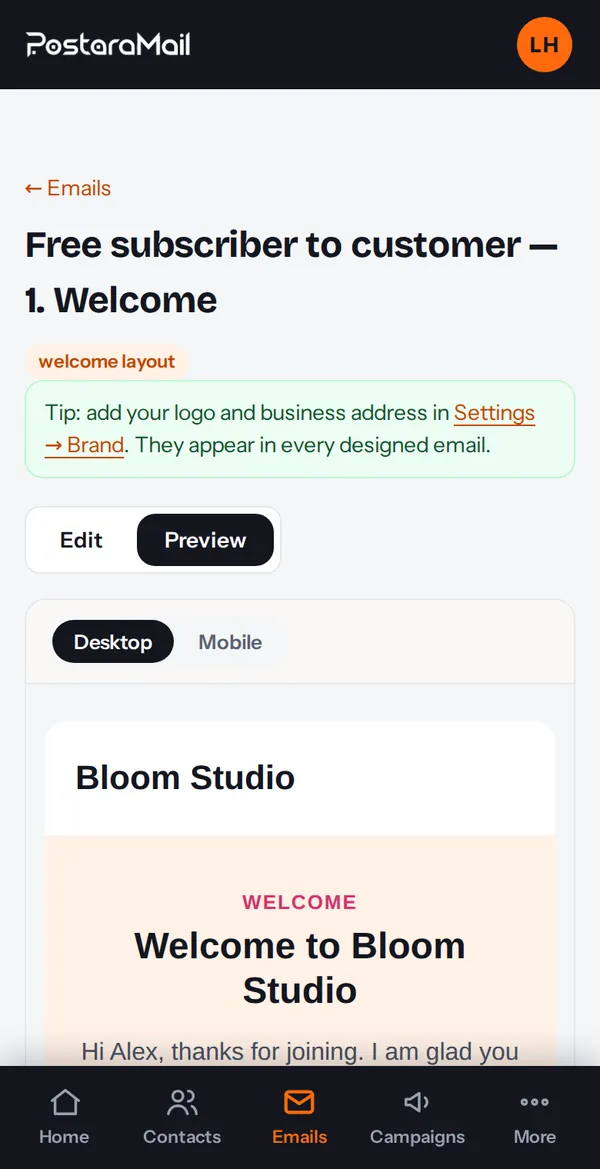
Switch between desktop and mobile preview. Most people read email on a phone, so check it there.
5Send yourself a test
Press Send test, enter your address and check the email in your inbox before sending it to your list.
Stuck? Contact support · All tutorials · Glossary